Your shop page
The Marketing tab: get more orders
4 minute read
The Marketing tab is for the weeks you want more work rather than more organization. It has five smaller tabs, and they all follow one rule: Broidry writes and prepares, you send. Nothing in here messages a customer on its own.
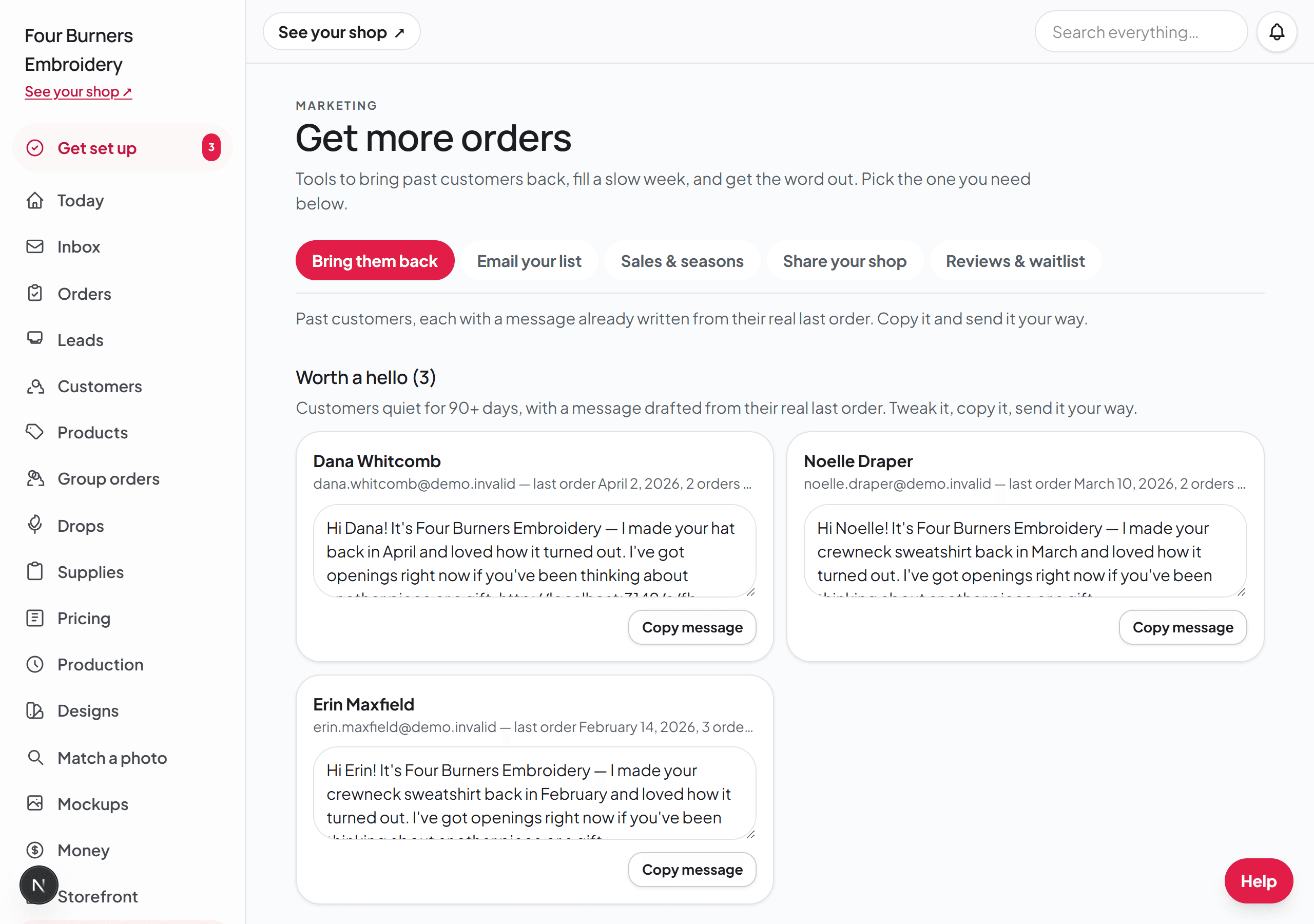
Bring them back
A list of your past customers with a message already written for each one, built from their real last order — the actual piece, the actual date. Copy the message and send it wherever you and that customer already talk. A person who bought a teacher gift last spring is very likely to buy one again; this tab is how you remember to ask.
Email your list
Write one email and send it to everyone who opted in to hear from you, straight from Broidry. Good for announcing a drop, a sale, or holiday deadlines.
At the top of the Email your list tab, on every plan, is who is on your list: how many people, and the newest ten with the day each one joined. Someone who joined in the last day says New today. When someone presses Sign me up under Follow along on your shop page, the notification you get opens this list.
You can send to your list up to 3 times a day. Use the whole web address for any link in your email. Shortened links like bit.ly send email to spam. If people mark your emails as spam, Broidry pauses your emails to your list. Write to us from the Help page. We'll go over your emails with you.
Sales and seasons
Set up a shop-wide sale or a discount code for a slow week, and run a holiday push. Discount codes respect your minimum — a code can lower a price, but never below the floor on your rate card.
To make a discount code, open the Marketing page and click the "Sales & seasons" tab. Under "Discount codes", click "+ New code". Type the code your customers will enter, pick "% off" or "$ off", and type the amount. Click "Create code". Buyers type the code in your order form and the discount shows on their estimate and your quote. The "On" next to a code turns it off without deleting it. The "Discount code" box shows on your order form and in the cart only while at least one of your codes is on. Turn every code off and the box goes away.
To make a code for just some of your products, set "Works on" to "Only the products I pick" when you make it. Then press the photo of each product the code is for. If you have more than 12 products, type part of a product's name in the Find a product box. You'll see only the products that match. To take a product off the code, press its photo again. The code takes money off those items only. In a cart with other items, the rest stay full price. If a buyer tries the code on a different product, they see which products it works on. If none of those products are in a buyer's cart, nothing comes off. On the Marketing page, the code says "only on" followed by the names of those products.
A collection is a tag you put on your products, like Christmas or Teacher gifts. To make a code for a whole collection, set "Works on" to "Every product in a collection" and pick the collection. The code takes money off every product with that tag. That includes products you tag later. To see "Every product in a collection", tag at least one of your products first.
A code takes its amount off the items, not off shipping. A 10% code on a $40 piece with $8 shipping takes off $4, so the order comes to $44. A $50 code on that same order takes off the $40 of goods and leaves the $8 shipping, so the order comes to $8. Rush is part of the work, so a code does come off a rush charge. Sales tax is figured on what is left after the code.
A code can have a first day and a last day. The "starts" date box is the first day it works and the "ends" date box is the last day it works, both counted in your shop's time zone, and both are optional. A code with no start date works as soon as you make it; a code with no end date works until you turn it off. This is how you make next week's friends-and-family code today: a customer who types it early is told "That code starts on October 20" and can come back. A code that has not started yet shows a small "starts Oct 20" note in your list.
Two more boxes limit how often a code is used. "total uses allowed" is the most orders the code can be used on in all; leave it blank for no limit. The box "each customer can use this code once" means one order per customer, matched by their email or phone number. When a code is used up, expired, or already used by that customer, the buyer is told so in plain words instead of being charged full price without knowing.
To change a code you already made, click "Edit" next to it. Change the amount, the "starts" or "ends" date, "total uses allowed", "each customer can use this code once", or "Works on", then click "Save changes". The code keeps its name, its link, and the number of orders that used it. Orders that already used the code keep their discount. A new amount only applies to new orders. To run the same code on different days, change its two dates.
The shop-wide sale is on a different page: open Storefront, click "Run a sale", and turn on "Run a shop-wide sale", then type the "Percent off" and click "Save percent". Every priced product shows its sale price and a percent-off tag.
You can also ask your Shop Assistant, on every paid plan: "Make a code called FAIR10 for 10% off", "Give Sara $5 off with a code", "A friends and family code for next week, 15% off". It makes the code with the same boxes this card has, tells you what it made, and hands you the link with the code already on it. "Who used FAIR10" lists every order the code was used on. "Turn off FAIR10" or "turn it back on" is the same as the "On" switch here, with an Undo under the answer. "Keep BLACKFRIDAY15 but run it from today until November 15" changes the dates on that code. It works the same as clicking "Edit". You can undo a date change too. "Delete the fair code" asks you Yes or No first, because a delete has no Undo. "Run a 15% off sale" turns on the shop-wide sale, and "end the sale" turns it off.
Every code you make gets a "Copy link" button next to it. That copies your order link with the code already on it, so giving one customer their own price is one paste into a text or a message. They open the page and the price is already theirs, with nothing to type and nothing for you to explain. It is the answer to "this piece is $78 but you're paying $35."
The link is safe to send to one person. If someone forwards it, the code is still checked the same way a typed one is, so an expired code, a used-up code, or a one-per-customer code stops working for the next person, and they are told why instead of being charged the higher price without knowing.
Discount codes are part of the Shop plan and up. If your shop moves to Free or Maker, your codes stay on your account but stop working, and a customer who types one is told the code isn't active right now. Every code that was on works again the moment you move back to Shop.
On the Free and Maker plans, the "Sales & seasons" tab shows a card called "Bring past customers back" with a "Start the Shop plan" button and a "Compare plans" link where the "Discount codes" card would be, so a new code can only be made once your shop is on Shop. "Start the Shop plan" takes you straight to checkout for the Shop plan, or to your Billing page if you already pay for Maker, where you switch plans. "Compare plans" opens your Billing page.
Sales are part of the Shop plan and up too: the shop-wide sale and a product's own percent off under "Sale on this item". On Free or Maker, your products sell at their full price. A sale you set before stays saved. It lowers prices again the moment your shop moves back to Shop. When a saved sale stops lowering prices, Broidry tells you once, on the bell and at the top of your Storefront page. "Follow shop sale" and "Never on sale" on a product can be set on every plan. To put several products on sale at once, ask your Shop Assistant: "Put my Christmas collection on sale for 20%".
Season deadlines and review replies
Under Sales and seasons, Season deadlines shows an order-by date for each occasion you sell into, worked out from your real schedule, with a drafted post and a button that puts the deadline on your shop banner. Press "Edit which occasions show here →" to pick the occasions, and add one of your own there. Until you pick, no deadline cards show.
Under Reviews and waitlist, each review has a reply box. "Post reply" puts your reply under the review on your shop page, where everyone can read it.
Print your thank-you card
Your thank-you card is the package insert. It is on every plan.
- 1Open the Marketing page and click the "Share your shop" tab.
- 2Click "Package insert". Your thank-you card opens.
- 3Click "Print the 4×6 card". Print on 4 by 6 photo paper, or on letter paper and trim it.
- 4To put one customer's first name on the card, open their finished order and click "Print a package insert for this order". You can also ask your Shop Assistant for the thank-you card for that order.
Print a QR code that asks for a review
The thank-you card's QR code opens your shop page. To have it open your review page, press "The page where they leave a review" under "What the QR code opens" on the card's page. To change it back, press "Your shop page".
On a card you open from an order with "Print a package insert for this order", the code opens that order's own review page. Your customer scans it, picks the stars, and writes a line or two. Your customer can leave a review once you mark the order Done.
If you pasted a Google review link on the Storefront page, the code on your Marketing page card opens that link. If you haven't pasted a Google review link, the code opens your shop page.
If you're using the Broidry iPhone app and the print button says this version of the app can't print, press "Copy the link to print this page". Paste it into Safari, sign in, and print from there.
The table card for a market or craft fair is on the Events page, in the craft-fair kit: a print-ready 4 by 6 card in your shop's own look, with a QR code straight to your shop page. Set it on your table at a fair and the person who loved your work but didn't buy can order from home. The guide called Markets, craft fairs and live embroidery events covers it.
People who follow your shop
Near the bottom of your shop page there is a sign-up box: New pieces, straight to your inbox. Anyone can use it, whether they have ordered from you or not, so someone who loves your work and is not buying today can still hear about the next thing you make.
Everyone who signs up there joins the same list as customers who checked the opt-in box at checkout. Signing up sends them a short hello straight away, with a look at what you have in the shop right now and a line saying how often they will hear from you.
After that, Broidry emails the list a roundup of your new work on its own. You do not have to send anything. It waits until there is something to show and then never sends another for two weeks, so a run of new products goes out as one email rather than five. Anything you publish while it is waiting joins the next roundup instead of being skipped.
Each of these emails has your logo at the top in your shop's color. The roundup shows a photo of every new piece with its name and short description. Clicking a piece opens its page in your shop.
That gap is on purpose. People do not leave a list because a shop emails twice a month. They leave when it turns up more often than they were told, and the ones who feel ambushed press the spam button rather than unsubscribe. Every shop on Broidry sends from the same address, so one shop's spam complaints make everybody's email harder to deliver, including the order confirmations your buyers are waiting on.
A drop is the one thing that does not wait. Because a drop closes, you can email your whole list about it the same day, from the button on the drop itself. That one goes out once per drop.
Every email carries an unsubscribe link and a send-me-these-less-often link next to it, which drops that person to about twice a year instead of removing them. On the Email your list card you can see how many people joined and how many left over the last three months.
Writing your own message to that list — a sale, a season, an announcement — is the Email your list card above, on the Shop plan. The hello, the roundups, and the drop email all work on every plan, including Free.
Reviews and waitlist
Ask a happy customer for a review with a request that is already written, and see who signed up to wait on a piece you marked coming soon. When you uncheck Coming soon, everyone on that list is emailed automatically — you do not have to send anything. Anyone who left a phone number instead of an email stays marked not yet told, so you can text them yourself.
The review ask also runs on its own. Every order you mark Done gets one ask a week later (the next day, if you sent the finished-piece photo from the order page), and one reminder a week after that if no review came in. Never a third. The line at the top of this section, Asked, Reminded, Reviewed, is the running count for your shop.
The review email has your shop logo in your shop color, five stars, and a Leave your review button. If you haven't added a logo, it shows the first letter of your shop name instead. When the customer presses a star, the review page opens with that many stars already picked. If you sent the finished-piece photo from the order page, the photo is in the email too.
When a buyer adds a photo to their review, your new review alert says "with a photo". The review on this page has a "📷 With a photo" tag. Press the alert and this page opens on that review. You'll also see the review and the photo on the order itself: open the order, press Messages, and look at the card called The review ask.
Review photos show big in three places on your shop page: with the review on the Reviews tab, with the review in What buyers say, and on the product's own page. On the product page, buyers press "See the buyer's photo" under the stars to jump to it. Once two or more reviews have photos, they also sit in a row called Photos from buyers above the reviews.
Press any review photo here or on your shop page. It opens full screen with the buyer's words under it. Press the photo itself, or press Zoom in, to look closer. On a phone you can also pinch with two fingers and drag a zoomed photo around. Press the photo again, or press Zoom out, to see the whole photo. If the words are fine but the photo is not, press "Hide only the photo" under that review. The photo comes off your shop page. The review's words stay up.
The review form tells buyers that if they add a photo, your shop can share it anywhere, like on your website or social media. That line went on the form on October 29, 2026. Buyers who added a photo before then didn't see that line. Ask them before you share their photo outside Broidry.
If you collect reviews on Google or Facebook too, paste those review links on the Storefront page under your shop details (Google review link and Facebook review link). A buyer who reviews you on Broidry then sees their own words in a box with a Copy button and a Post this on Google too or Post this on Facebook too button, and the review ask email carries the Google link as a second option. Every reviewer sees the buttons, whatever their star rating.