Your shop page
Use a .bx font in Broidry
5 minute read
A .bx file is a font format made for Embrilliance software. It doesn't hold ready-to-sew letter files the way a PES alphabet does — the stitches only come out when Embrilliance itself types the letters. That's why Broidry can't read a .bx directly: no program outside Embrilliance can.
The easy way: upload the .bx file itself. In Broidry, open Designs, go to the Fonts tab, choose I only have a .bx file under Add your own fonts, and drop in either the .bx or the whole zip your purchase downloaded as. If it is a zip, we open it and use the .bx inside, so you never have to unzip anything. We convert it into a stitch font for you and email you when it's ready. You do not have to type anything.
What happens after you drop the .bx in
Your font is converted on a real machine running real Embrilliance, the same way you would do it yourself. That means it is not instant. We email you the moment it is ready, and if your exact font file has been converted before, it is ready in seconds.
You'll get one of two emails:
- 1"Take one look at the letters" — the conversion worked, and the font is waiting for your eyes. On the Fonts tab, every font still waiting on this check sits in its own box at the top of the Add your own fonts card, above the rest of your fonts, no matter how your list is sorted. Click Check the letters on that font and the letter grid opens directly under it. Your other fonts are listed below that box. The list shows eight at a time; click Show all to see the rest, or type part of a name in Find a font. See the letters on any font opens its letters under it the same way, and a font that looks wrong has a "Something's off — have us look at it" button right there. To look closer, press Maximize above the letters. Every letter opens full screen, drawn very big from your stitch file so you can check every edge and detail, a few letters per row as you scroll down. The first time for a font takes about 15 seconds. The same buttons sit at the bottom of that screen, and Close or the Esc key takes you back. Every converted font gets this step: you'll see every letter in a grid, each under the letter a customer would type to get it. If the grid looks right, one click makes it live; if anything is off, press "Something's off — have us look at it" and we take it from there — nothing goes live without your okay.
- 2"We couldn't prepare your font" — the file couldn't be converted, and the email says why in plain words. Nothing is stuck or half-done; the do-it-yourself route below works for every .bx font, and you can reply to the email with questions.
If it's taking longer than you expected
If your font is still waiting at the 20-hour mark, we email you to say so. You do not need to do anything, and you do not need to upload it again. A second upload of the same file just tells you it is already being prepared.
The reminders work the other way too. If your font converted fine but is still waiting for your look at the letter grid, we nudge you at two days and again at five — the font cannot go live without your okay, so those emails exist to keep a finished font from sitting forgotten.
If you would rather not wait at all, the rest of this guide is the do-it-yourself route: about five minutes with the free Embrilliance Express, and your font is in Broidry today. Express installs any .bx font and saves typed lettering as a real stitch file. You type the whole alphabet once, save one file, and Broidry splits it back into letters.
Get Embrilliance Express — free
Download Embrilliance from embrilliance.com and install it. Without buying anything, it runs as Embrilliance Express — the free mode. Typing lettering with BX fonts and saving stitch files is the whole point of Express, so nothing here needs a paid license.
Install your .bx font
- 1Open Embrilliance.
- 2Find your .bx file in your font purchase's folder and drag it into the open Embrilliance window. The font installs itself — you only ever do this once per font. (Double-clicking the .bx file does the same thing.)
Type the alphabet Broidry shows you
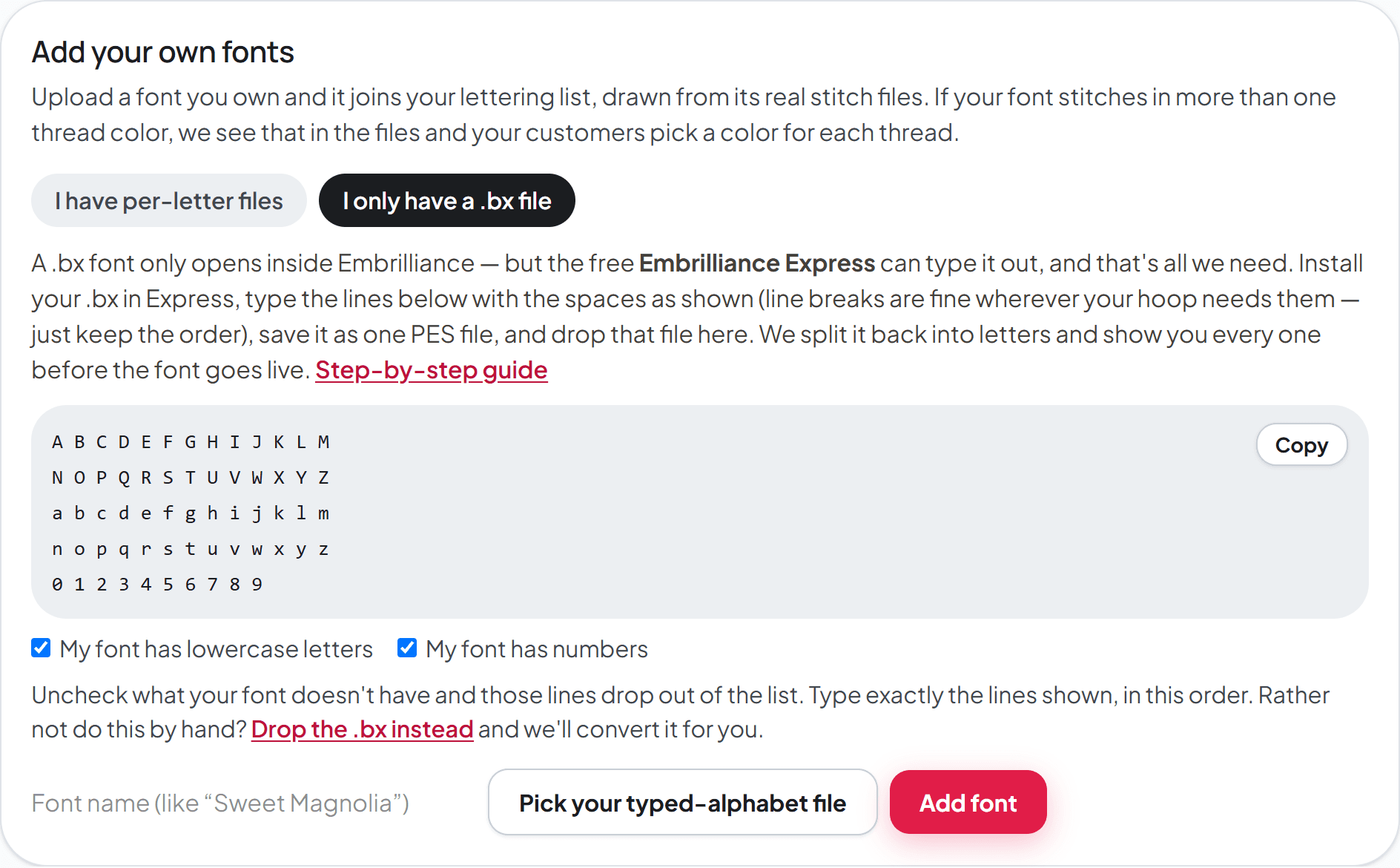
In Broidry, open Designs, go to the Fonts tab, and under Add your own fonts choose I only have a .bx file, then Convert it yourself right now. Broidry shows the exact lines to type — capital letters first, then lowercase, then numbers, every letter separated by a space. Keep that page open, or click Copy.
- 1In Embrilliance, create a lettering design (the Create Letters tool — the big letter A).
- 2In the letters box, type the lines exactly as Broidry shows them, with a single space between letters. Line breaks are fine wherever your hoop needs them — what matters is the order of the letters, top row to bottom row, left to right. If your font has no lowercase or no numbers, uncheck My font has lowercase letters or My font has numbers on the Broidry panel first — the lines drop out of the list, and Broidry knows exactly what to expect.
- 3Pick your .bx font from the font list, and set the letter height to about one inch (25 mm).
- 4If the lettering runs off the edge, pick a larger hoop in the hoop settings. You are never going to stitch this design — the hoop is just the canvas it's drawn on, so the biggest hoop in the list is fine no matter what machine you own.
Save one stitch file
- 1In Embrilliance, choose File, then Save Stitch File As.
- 2Pick PES as the file type and save it somewhere you'll find it, like your desktop. (A plain Save writes a .BE working file — that one is for Embrilliance, not for Broidry.)
Upload it and check the letters
- 1Back in Broidry, on that same I only have a .bx file panel: give the font its name, drop in the file you just saved, and click Add font.
- 2Broidry splits the file into letters and shows every one in a grid, each under the letter your customers will type to get it. Look them over — this is the moment to catch anything odd.
- 3If the grid looks right, click The letters match — add my font. The font goes live in your studio and, if you offer it, on your order form. If something looks wrong, remove it and re-export — nothing goes live until you say so.
If Broidry says the letter count is off
Broidry never guesses which stitches belong to which letter. If it finds more or fewer letters than the alphabet you typed, it tells you what it found, row by row, and asks for a fresh export instead of assigning letters wrong.
The usual causes: two letters sat close enough to touch, or one letter's parts drifted apart. Two fixes cover almost everything — give the letters more room with Embrilliance's Space slider (select the lettering and drag Space to the right; some fonts won't let you type space characters at all, but the slider always works), and for script fonts with long tails, make the letters a little bigger. Then save and upload again; the second pass takes a minute.