Your shop page
Your fabric shelf: show buyers the real fabrics you stock
6 minute read
When a buyer orders appliqué lettering, they are choosing a fabric. Without pictures, the order form can only offer them words like "cotton" or "fleece," and the buyer has to describe the print they are imagining — "something buffalo plaid, in red?" — and hope what arrives matches what was in their head. That guessing is where appliqué orders go sideways.
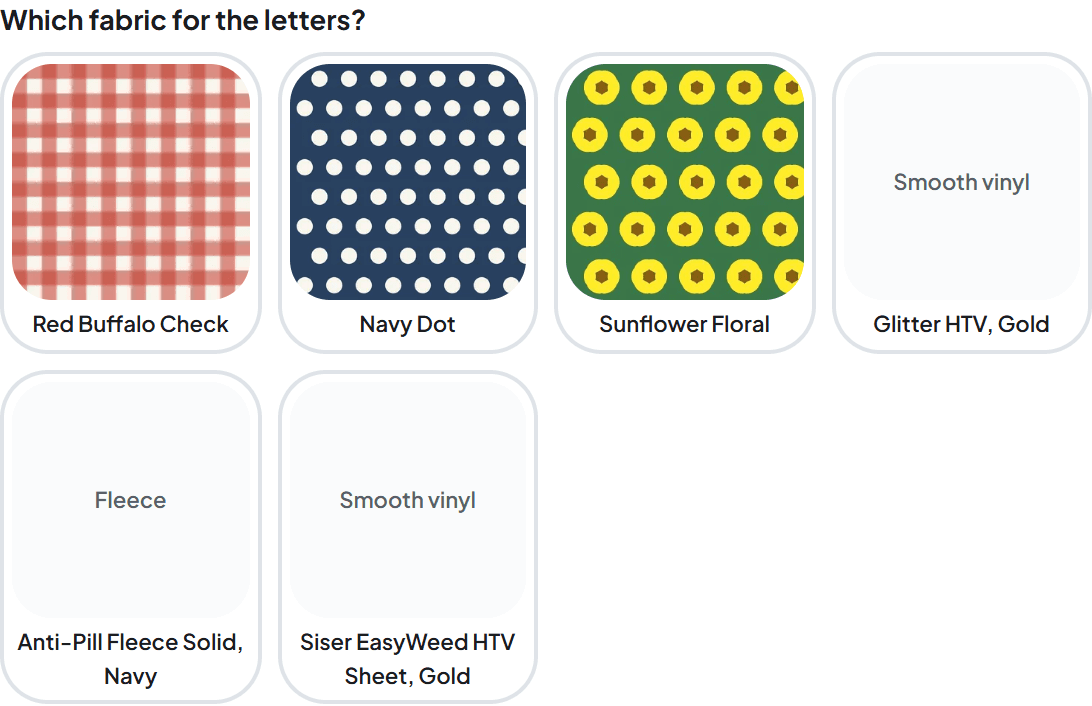
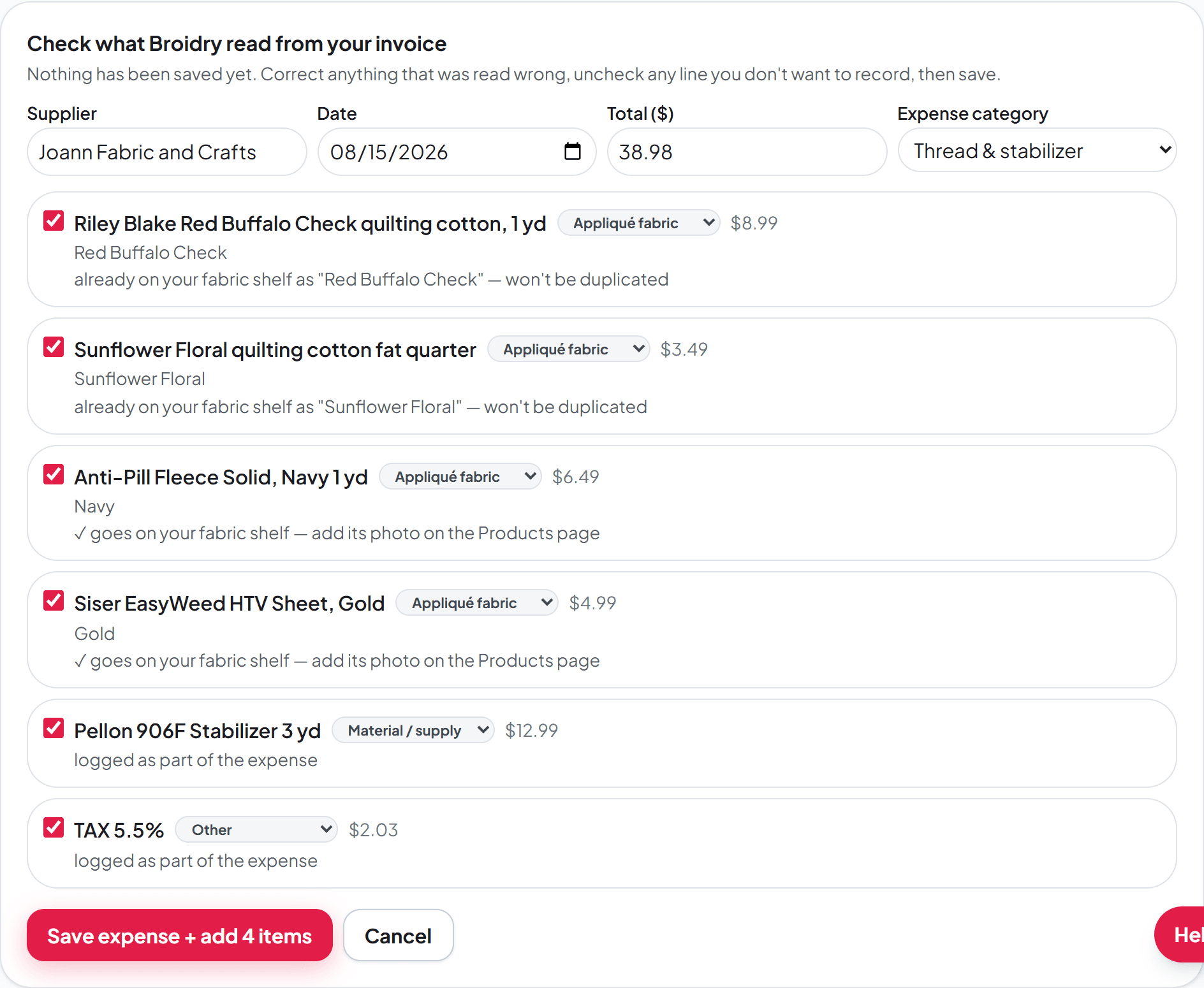
The fabric shelf fixes it. It is a set of tiles, one per fabric you stock, that lives on your Products page under "My fabrics." Once there is anything on it, your buyers stop choosing between words and start clicking the actual fabric: your buffalo check, your navy dot, your sunflower floral. What they pick is pinned to the order by name, so what you stitch is what they saw.
You can fill the shelf by photographing fabrics and dropping the photos in, or by dropping in the receipt from your last fabric run, and Broidry puts every fabric on it onto the shelf for you, named and sorted and waiting for its photo. The photos and the receipt work together.
What your buyers see
In the order form, when a buyer picks appliqué lettering, the question "Which fabric for the letters?" shows your shelf as a grid. Fabrics with photos show the photo. Fabrics you have not photographed yet still show up as a named tile — "Anti-Pill Fleece Solid, Navy" beats the bare word "fleece," even without a picture. If you never do appliqué on a sleeve, turn off "Offer appliqué on sleeves" in the Appliqué section of "What I offer" (click that line on your Products page), and a buyer adding a name on a sleeve is never shown this question.
Under the grid there is a "Want something other than these?" box, so a buyer who needs a fabric you did not list can still ask. Your shelf never closes a door; it just makes the open ones visible.
Name banners work too. When the name has more than one letter, a "Pick a fabric for each letter" button sits above the grid. The buyer clicks it, clicks a letter, then clicks that letter's fabric, and the next letter is selected for them. Each letter shows a tiny square of the fabric it will be cut from. On your order page, work sheet, and run sheet the appliqué line reads letter by letter: "O: Blue floral · P: Digital camo · A: Red gingham." A buyer can also pick one fabric for the whole name and then change just a letter or two.
A piece sold exactly as shown can ask the fabric question too. If your design is cut from fabric and you list it in more than one, turn on "Let buyers pick the fabric" on that set design in the product editor. The buyer gets the same shelf grid, and answering is required, because the fabric is what the letters are made of and there is no honest "as shown" when your photos show six of them. On that same switch you can check off a few fabrics instead of offering your whole shelf.
Double appliqué comes with the font. If you own a double appliqué font, one that stitches a second fabric behind the letters, mark it on your Designs page: under each font there is a checkbox, "Double appliqué font." When a buyer picks that font as appliqué, the form asks one more question, "Which fabric for the background layer?" with the same shelf. Fonts you have not marked never show the question. Your order line reads, for example, "Appliqué in Glitter, Blue glitter · background: Red glitter." The add-on price for the background layer is set on your Pricing & settings page and is charged on top of your appliqué fee.
Fill the shelf from a receipt
If you buy fabric at Joann, a quilt shop, or anywhere that hands you a receipt, you do not have to type any of it in. The same invoice drop that already reads your thread and blank orders now reads fabric too.
- 1Open your dashboard and go to Money, then the Expenses tab.
- 2Drop the receipt into "Drop in an invoice" — a photo of the paper receipt, a screenshot of an order confirmation, or a PDF. Up to three files at once.
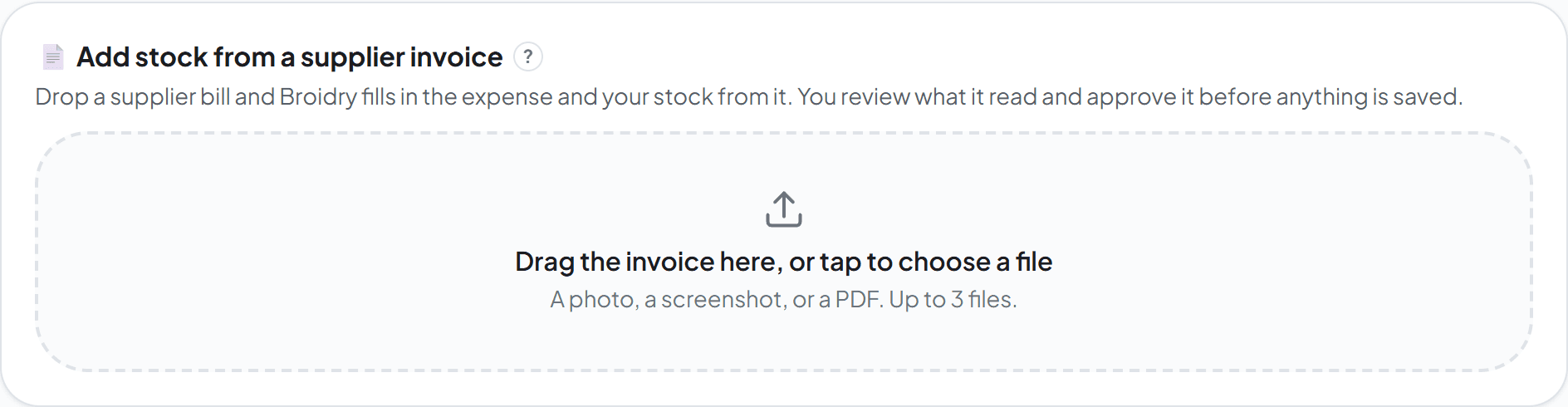
- 3Check the review screen. Each fabric line is labeled "Appliqué fabric" and says what saving will do: "goes on your fabric shelf." If a line was read wrong, change its label right there; if you do not want a line saved, uncheck it.
- 4Click Save. The whole receipt is filed as one expense in your books, and every kept fabric line goes onto your shelf at the same time.
What the review screen tells you
Nothing is saved until you approve what was read — the review screen is your chance to check Broidry's work. For fabric lines, it also checks your shelf for you.
A fabric you already have says so: "already on your fabric shelf — won't be duplicated." Buying more of a fabric never stacks a second copy next to the first. And if the fabric was marked out of stock on your shelf, buying more flips it back in stock automatically — restocking is just dropping in the new receipt.
A fabric that is new to your shelf says "goes on your fabric shelf — add its photo on the Products page." It arrives named from the receipt — the print name when the receipt gives one, otherwise the line as written — and tagged with its fabric type. You can correct both later, and your word always wins.
Add the photos, whenever you have a minute
A fabric that came from a receipt shows on your shelf as a dashed tile with an "Add a photo" button in the middle. Click it, pick a photo of that fabric, and the tile becomes a real swatch. The photo is straightened, cropped square, and evened out for light — and never touched up beyond that, so what your customer sees is your actual fabric.
You do not have to do them all at once, and you do not have to do them at all. Every photo you add just makes that tile easier to pick.
Or photograph your stash directly
The photo-first path is still the fastest way to get a big stash on the shelf with pictures from day one: photograph everything, then drop all the photos in at once.
- 1Lay your fabrics out flat near a window and take one photo of each from straight above. A stash takes a couple of minutes this way.
- 2Fill the frame with just the fabric — no table edge, no hands, no ruler. Broidry crops to a square from the middle, so whatever is in the center is what your customer sees.
- 3Use daylight if you can. Overhead kitchen light turns everything yellow, and yellow is the one thing a photo cannot fully be corrected back from.
- 4On the Products page, under My fabrics, click Add fabrics and drop them all in — up to 12 at a time; send the rest in a second drop.
- 5Each photo comes back straightened, cropped, and with a suggested name and fabric type already filled in. Fix anything it guessed wrong — your word always wins over the suggestion.
Running out, renaming, and removing
When a bolt runs out, click "Mark out of stock" on its tile. The fabric stays on your shelf with its photo and name, but buyers stop seeing it — and an order that sneaks in from a page someone already had open is refused with a polite "that fabric just ran out." When you restock, click "Back in stock" — or just drop in the receipt from buying more, which flips it back for you.
Rename a fabric any time by typing in its name box; the name saves when you click away. Change its fabric type with the dropdown under the name. Remove a fabric for good with the × on its corner — its photo goes with it.